ユーザー
このモジュールでは認証されたユーザーの各種処理を行う。 ユーザーの機能は大きく分けて6つある。
- ユーザーのプロフィール情報の更新
- ユーザーのサムネイルの更新
- ユーザーのメールアドレスの変更
- ユーザーのパスワードの変更
- サインアウト
- 非ログインユーザーのパスワードの変更
ユーザーのプロフィール編集
この章ではログインしているユーザーの情報を更新する機能を実装する。 ここで扱うのはプロフィールやアカウント名のように公開する情報の更新を扱う パスワードやメールアドレスの更新は別に紹介する。
この実装はユーザーの中でも簡単なほうである。 まずは、Rails API側から実装してみる。
app/controllers/application_controller.rbを開いて、deviseの公式にある方法を記述する。
before_action :configure_permitted_parameters, if: :devise_controller?

protected

def configure_permitted_parameters
  devise_parameter_sanitizer.permit(:account_update, keys: [:nickname, :name])
end
userモデルに好きなフィールドを追加した場合、それをapp/controllers/auth/registrations_controller.rbのPUT /auth(.:format) auth/registrations#updateで受け取れるようにする設定である。
API側は以上なのでコミットしておく。
git add .
git commit -m "Receives values to update user information"
Next側に移動して、current userアップデート用の関数を作成。
export const updateCurrentUser = (params) => {
  if (!Cookies.get('_access_token') || !Cookies.get('_client') || !Cookies.get('_uid')) return
  return client.put('/auth', params, {
    headers: {
      'access-token': Cookies.get('_access_token'),
      client: Cookies.get('_client'),
      uid: Cookies.get('_uid'),
    },
  })
}
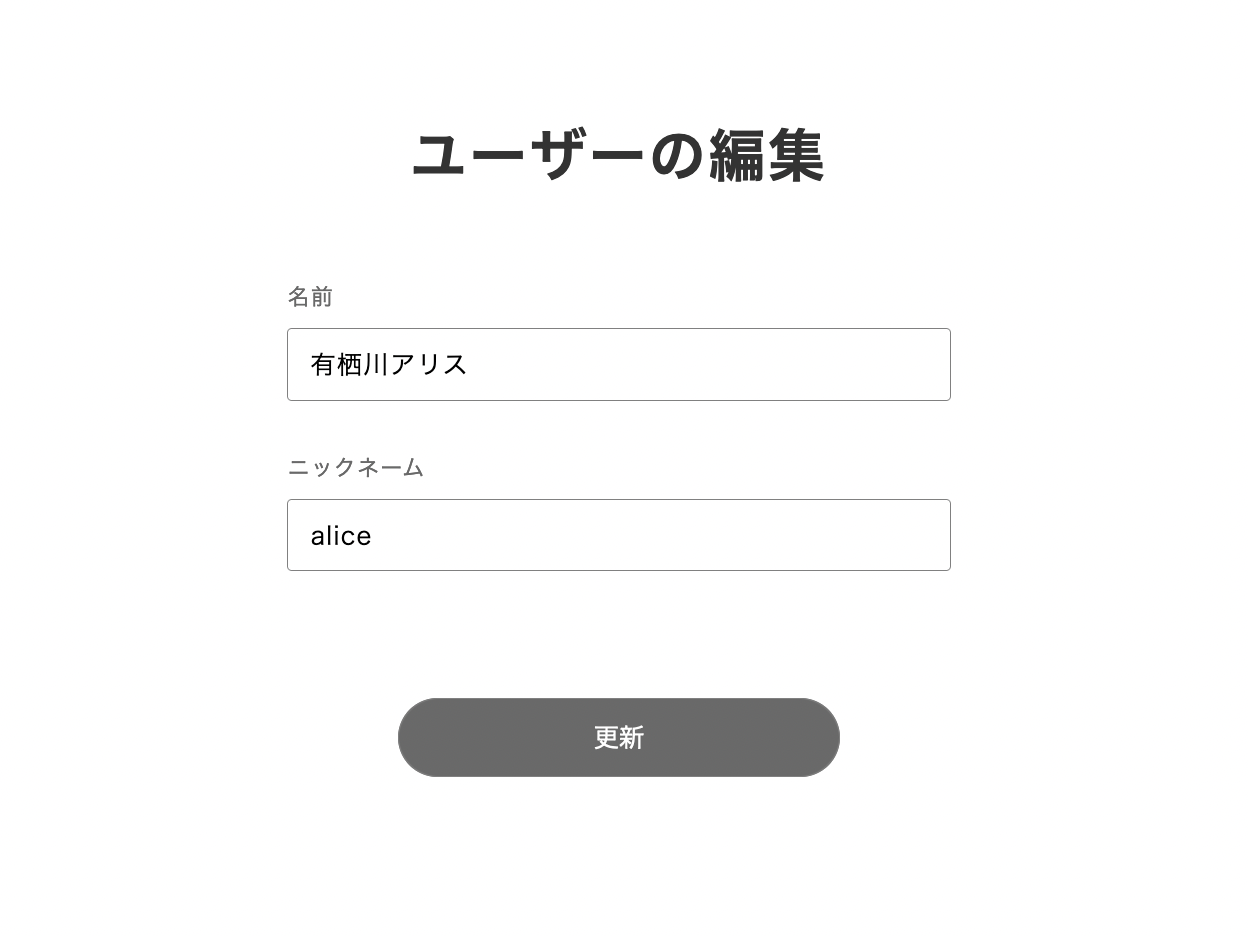
ユーザー情報編集ページを作成。
mkdir pages/users
touch pages/users/edit.jsx
内容をこのようにする。
コードは基本的にpages/posts/[id]/edit.jsxと同じなので解説は割愛する。
なお、importで利用していないImageコンポーネントがあるが、これは次のサムネイルのアップロードで利用する。
import { useState, useContext, useEffect } from 'react'
import Head from 'next/head'
import { useForm } from 'react-hook-form'
import { Text, Box, Clickable, TextField, ThreeDots, Alert, Image } from '../../atomic/'
import { AuthContext } from '../_app.js'
import { updateCurrentUser } from '../../lib/api/user'

export default function UsersEdit() {
  const {
    register,
    handleSubmit,
    watch,
    setValue,
    formState: { errors },
  } = useForm()

  const [animation, setAnime] = useState(false)
  const { currentUser, isSignedIn, setCurrentUser } = useContext(AuthContext)
  const [notifications, setNotifications] = useState([])
  const createNotification = (message) => setNotifications([...notifications, { id: Math.random(), message }])
  const deleteNotification = (id) => setNotifications(notifications.filter((notification) => notification.id !== id))

  const onSubmit = async (data) => {
    if (!isSignedIn) {
      createNotification('投稿にはログインが必要です')
      return
    }
    const params = new FormData()
    params.append('name', data.name)
    params.append('nickname', data.nickname)

    setAnime(true)
    try {
      const res = await updateCurrentUser(params)
      console.log(res)

      if (res.status === 200) {
        createNotification('更新しました')
        setCurrentUser(res?.data.data)
        console.log('Signed in successfully!')
      } else {
        console.log('some thig went wrong')
        createNotification('予期しない問題が発生しました')
      }
    } catch (err) {
      console.log(err)
      createNotification('エラー')
      //createNotification(err.response.data[0])
    }
    setAnime(false)
  }

  useEffect(() => {
    setValue('name', currentUser?.name)
    setValue('nickname', currentUser?.nickname)
  }, [currentUser])

  return (
    <div>
      <Head>
        <title>ユーザーの編集</title>
        <meta name="description" content="ユーザーの編集" />
        <link rel="icon" href="/favicon.ico" />
      </Head>
      <Box as="main" mt={[60, null, 80]}>
        <Text as="h1" textAlign="center" fontSize={[26, null, 36]} fontWeight={700} lineHeight={['26px', null, '36px']} letterSpacing={[1.3, null, 1.8]} color="#333">
          ユーザーの編集
        </Text>
        <Box mt={[40, null, 60]} px={[16, null, 0]} width={['100%', 420]} mx="auto">
          <Text fontSize={14} lineHeight="1.71" letterSpacing={0.7} color="dimgray">
            名前
          </Text>
          <TextField name="name" {...register('name', {})} height={46} width="100%" borderColor="gray" borderWidth={1} borderRadius={3} py={10} pl={14} fontColor="black" fontSize={16} letterSpacing={0.8} mt={8} />
          <Text fontSize={14} lineHeight="1.71" letterSpacing={0.7} color="dimgray" mt={30}>
            ニックネーム
          </Text>
          <TextField name="nickname" {...register('nickname', {})} height={46} width="100%" borderColor="gray" borderWidth={1} borderRadius={3} py={10} pl={14} fontColor="black" fontSize={16} letterSpacing={0.8} mt={8} />

          <Clickable width={[220, null, 280]} height={[44, null, 50]} borderRadius={[44 / 2, null, 50 / 2]} bg="dimgray" color="white" hoverShadow="silver" borderColor="gray" borderWidth={1} display="flex" alignItems="center" justifyContent="center" overflow="hidden" mt={80} mx="auto" onClick={handleSubmit(onSubmit)}>
            {animation ? <ThreeDots bg="white" /> : <>更新</>}
          </Clickable>
        </Box>
        <Box position="absolute" top="15px" right="20px">
          {notifications.map(({ id, message }) => (
            <Alert key={id} onDelete={deleteNotification} id={id}>
              <Box width={320} minHeight={50} borderRadius={7} border="1px solid silver" bg="ghostwhite" px={5.5} py={3} style={{ overflowWrap: 'break-word' }}>
                {message}
              </Box>
            </Alert>
          ))}
        </Box>
      </Box>
    </div>
  )
}
git add .
git commit -m "Create a user edit page"
ユーザーのサムネイル更新
次にpostでやったようにユーザーもプロフィール画像を変更できるようにする。
Userモデルにthumbnailを追加。
bin/rails g migration add_thumbnail_to_users thumbnail:string
マイグレートする。
bin/rails db:migrate
app/models/user.rbを開いて、basic_uploaderをマウントする。対象となるカラムは今追加したthumbnailにする。
mount_uploader :thumbnail, BasicUploader
次に、auth/registrations_controller.rbのupdateでthumbnailとremove_thumbnailを受け取れるようにする。
thumbnailにはクライアントから送られてくる画像ファイル情報が入ってくる。
remove_thumbnailはupdateアクションで利用され、carrierwaveが処理するフラグになり、もしもこれがtrueの場合は画像を削除できる。
configure_permitted_parameters関数を書き換える。
def configure_permitted_parameters
  devise_parameter_sanitizer.permit(:account_update, keys: [:nickname, :name, :thumbnail, :remove_thumbnail])
end
デフォルトのユーザー画像を設定する。
下のこの画像をpublicフォルダにuser-default.pngで保存する。

サーバ側はこれで良い。
git add .
git commit -m "Upload users thumbnail"
Nextのフロント側に移動して、pages/users/edit.jsxを書き換えていく。
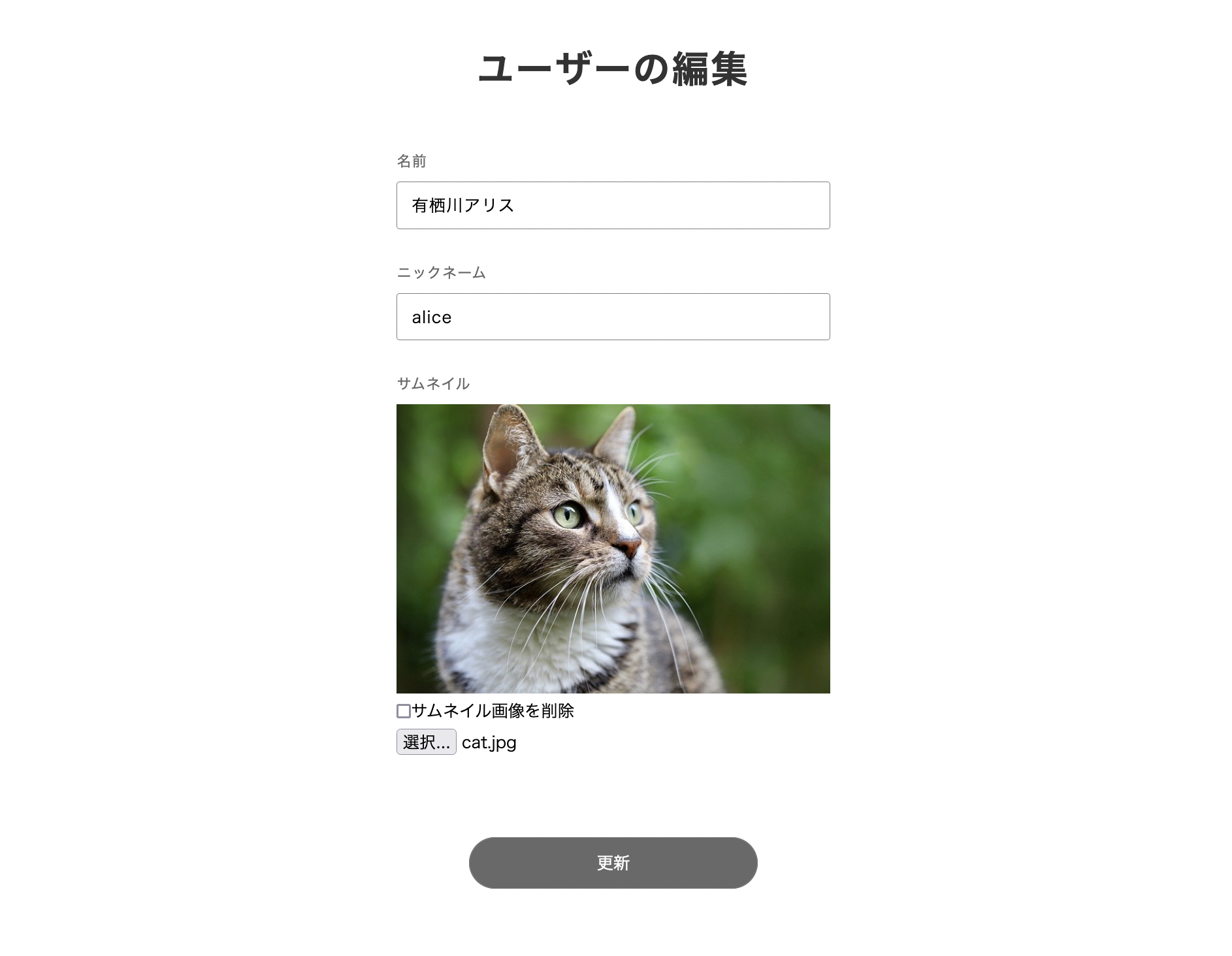
jsxのnicknameの下にこのDOMを追加する。
<Text fontSize={14} lineHeight="1.71" letterSpacing={0.7} color="dimgray" mt={30}>
  サムネイル
</Text>
<Box mt={8}>
  <Image src={currentUser?.thumbnail?.url} width="100%" />
  <Box as="label" display="flex" alignItems="center" mt={8}>
    <input type="checkbox" {...register('removeThumbnail')} />
    サムネイル画像を削除
  </Box>
  <Box mt={8}>
    <input type="file" {...register('thumbnail')} name="thumbnail" accept="image/*" />
  </Box>
</Box>
onSubmit関数paramsのセットにthumbnailとremove_thumbnailを加える。
const onSubmit = async (data) => {
  if (!isSignedIn) {
    createNotification('投稿にはログインが必要です')
    return
  }
  const params = new FormData()
  if (data.thumbnail.length > 0) {
    params.append('thumbnail', data.thumbnail[0])
  }
  params.append('removeThumbnail', data.removeThumbnail)
  params.append('name', data.name)
  params.append('nickname', data.nickname)

  ...
こんな感じ画像の登録が可能になる。
コミットする。
git add .
git commit -m "Developed the user thumbnail interface"
メールアドレスの変更
メールアドレスの変更はdevise_auth_tokenを使っている場合、かなりトリッキーな方法を使わなくてはいけない。
devise_auth_tokenのデフォルトのメールアドレスの挙動はシンプルである。
registrations_controllerのupdateアクションにemail = "alice@example.com"を送れば、uidとemail を更新する。
deviseの標準の挙動では確認メールを送り、そのリンクがクリックされた場合に、新しく指定されたメールアドレスになる。
ところが、devise_auth_tokenはその手続きをすっ飛ばし更新する。
devise_auth_token gemのdevise_token_auth-1.2.0/app/models/devise_token_auth/concerns/user.rbをみると以下の記述がある。
# don't use default devise email validation
def email_required?; false; end
def email_changed?; false; end
def will_save_change_to_email?; false; end
これはdeviseが利用しているemailのチェックに関する関数をdevise_auth_tokenがfalseを返すことで無効化している。
これらを再度overrideしてdeviseの挙動に戻してあげる。
なお、email_required?に関して、devise_auth_tokenが想定する挙動のままで良いと思う。
# Override to devise function
def email_changed?; super; end
def will_save_change_to_email?; super; end
参考にした。 https://github.com/lynndylanhurley/devise_token_auth/issues/1013
これでメールが送られる挙動にはなる。
sign_upの時にも行ったようにブラウザからconfirm_success_urlを投げるとメールにredirect_urlが記載されて、認証後のリダイレクト先が指定されるが、
この挙動はdevise_auth_tokenの処理であって、メールの更新時のdevise本家の挙動ではconfirm_success_urlが無視されて指定できないので、うまくやる必要がある。
まず、アップデート時にconfirm_success_urlを受け取れるように変更する。
def configure_permitted_parameters
  devise_parameter_sanitizer.permit(:account_update, keys: [:nickname, :name, :thumbnail, :remove_thumbnail, :confirm_success_url])
end
次にregistrations_controllerのupdateアクションを上書きして、confirm_success_urlをmailerに渡す処理を加える。
def update
  if params[:email] and params[:confirm_success_url].blank?
    render json: { errors: { title: 'confirm_success_urlは必須です' }} , status: :unprocessable_entity and return
  else
    @resource.confirm_success_url = params[:confirm_success_url]
    super
  end
end
deviseが用意しているデフォルトのmailerの挙動ではconfirm_success_urlをredirect_urlにしてviewのhtmlに渡してくれる処理をしないので、mailerもオーバーライドする。
devise用のmailerを作る。
touch app/mailers/devise_mailer.rb
基本的には全ての処理はdeviseに任せるが、確認メール送信のupdateの時だけredirect_urlを渡してあげる。
class DeviseMailer < Devise::Mailer
  layout 'mailer'

  # メールアドレス確認のお願い
  def confirmation_instructions(record, token, opts = {})
    opts[:redirect_url] = record.confirm_success_url if record.is_a?(User) && record.confirm_success_url.present? # Tips: /auth/updateで使用
    super
  end
end
deviseの設定ファイルで参照するmailerを作成したDeviseMailerに変更する。
# Configure the class responsible to send e-mails.
config.mailer = 'DeviseMailer'
これでメール送信時にredirect_urlが付与されるようになる。 サーバー側はこれで実装が完了したので、コミットする。
git add .
git commit -m "Send confirmation email when update new email"
Next.js側に移動してフロントを実装する。
メール変更だけのページを作成する
touch pages/users/edit_email.jsx
中身をこのようにする。
import { useState, useContext } from 'react'
import Head from 'next/head'
import { useForm } from 'react-hook-form'
import Cookies from 'js-cookie'
import { Text, Box, Clickable, TextField, ThreeDots, Alert } from '../../atomic/'
import { AuthContext } from '../_app.js'
import { updateCurrentUser, getCurrentUser } from '../../lib/api/user'

export default function UsersEditEmail() {
  const {register,handleSubmit,watch,setValue,formState: { errors },} = useForm()
  const [animation, setAnime] = useState(false)
  const { currentUser, isSignedIn, setCurrentUser } = useContext(AuthContext)
  const [notifications, setNotifications] = useState([])
  const createNotification = (message) => setNotifications([...notifications, { id: Math.random(), message }])
  const deleteNotification = (id) => setNotifications(notifications.filter((notification) => notification.id !== id))

  const onSubmit = async (data) => {
    if (!isSignedIn) {
      createNotification('ログインが必要です')
      return
    }
    const params = new FormData()
    params.append('email', data.email)
    params.append('confirm_success_url', 'http://localhost:3000/users/confirmed_email')

    setAnime(true)
    try {
      const res = await updateCurrentUser(params)
      console.log(res)

      if (res.status === 200) {
        const user_res = await getCurrentUser()
        setCurrentUser(user_res?.data.data)
        Cookies.set('unconfirmed_email', data.email)
        createNotification(user_res?.data.data.unconfirmedEmail + 'へメールを送りました。メールを確認してリンクをクリックしてください')
        console.log('Signed in successfully!')
      } else {
        console.log('some thig went wrong')
        createNotification('予期しない問題が発生しました')
      }
    } catch (err) {
      console.log(err)
      createNotification('エラー')
    }
    setAnime(false)
  }

  return (
    <div>
      <Head>
        <title>メールアドレスの変更</title>
        <meta name="description" content="メールアドレスの変更" />
        <link rel="icon" href="/favicon.ico" />
      </Head>
      <Box as="main" mt={[60, null, 80]}>
        <Text as="h1" textAlign="center" fontSize={[26, null, 36]} fontWeight={700} lineHeight={['26px', null, '36px']} letterSpacing={[1.3, null, 1.8]} color="#333">
          メールアドレスの変更
        </Text>
        <Box mt={[40, null, 60]} px={[16, null, 0]} width={['100%', 420]} mx="auto">
          <Box bg="snow" px={15} py={7}>
            <Text fontSize={12} lineHeight="1.21" letterSpacing={1} color="dimgray">
              現在のメールアドレス: {currentUser?.email}
            </Text>
          </Box>
          {currentUser?.unconfirmedEmail && (
            <Box bg="azure" px={15} py={7} mt={30}>
              <Text fontSize={12} lineHeight="1.21" letterSpacing={1} color="dimgray">
                確認待ちのメールアドレス: {currentUser?.unconfirmedEmail}
              </Text>
            </Box>
          )}
          <Text fontSize={14} lineHeight="1.71" letterSpacing={0.7} color="dimgray" mt={30}>
            新しいメールアドレス
          </Text>
          <TextField name="email" {...register('email', {})} height={46} width="100%" borderColor="gray" borderWidth={1} borderRadius={3} py={10} pl={14} fontColor="black" fontSize={16} letterSpacing={0.8} mt={8} />

          <Clickable width={[220, null, 280]} height={[44, null, 50]} borderRadius={[44 / 2, null, 50 / 2]} bg="dimgray" color="white" hoverShadow="silver" borderColor="gray" borderWidth={1} display="flex" alignItems="center" justifyContent="center" overflow="hidden" mt={80} mx="auto" onClick={handleSubmit(onSubmit)}>
            {animation ? <ThreeDots bg="white" /> : <>送信</>}
          </Clickable>
        </Box>
        <Box position="absolute" top="15px" right="20px">
          {notifications.map(({ id, message }) => (
            <Alert key={id} onDelete={deleteNotification} id={id} deleteTime={10000}>
              <Box width={320} minHeight={50} borderRadius={7} border="1px solid silver" bg="ghostwhite" px={5.5} py={3} style={{ overflowWrap: 'break-word' }}>
                {message}
              </Box>
            </Alert>
          ))}
        </Box>
      </Box>
    </div>
  )
}
http://locahost:3000/users/edit_emailにアクセスすると、このようなUIが表示される。
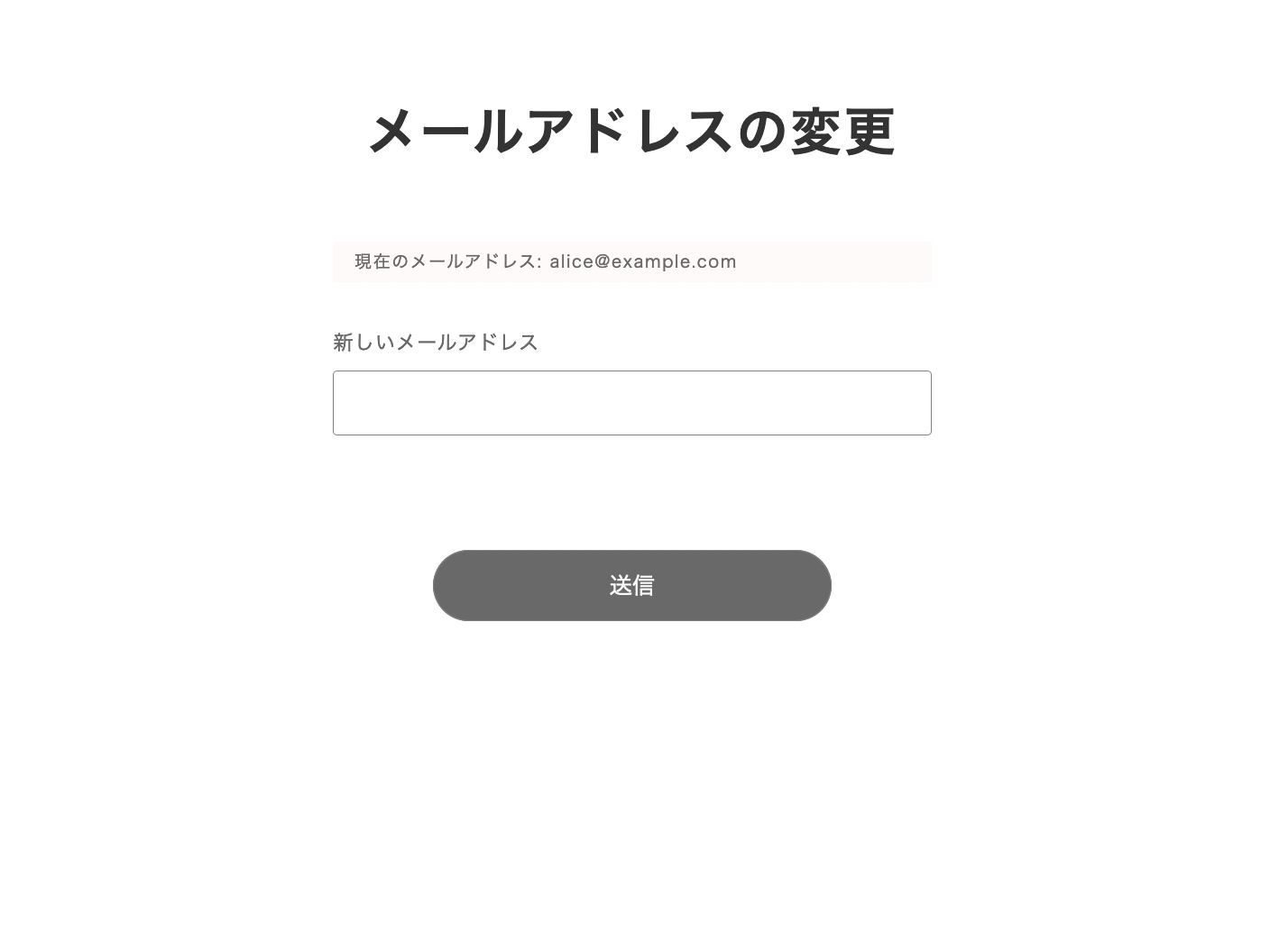
上のコードはほとんどedit.jsxと同じコードだが、onSubmitに大きな違いがある。
const params = new FormData()
params.append('email', data.email)
params.append('confirm_success_url', 'http://localhost:3000/users/confirmed_email')

setAnime(true)
try {
  const res = await updateCurrentUser(params)
  console.log(res)

  if (res.status === 200) {
    const user_res = await getCurrentUser()
    setCurrentUser(user_res?.data.data)
    Cookies.set('unconfirmed_email', data.email)
    createNotification(user_res?.data.data.unconfirmedEmail + 'へメールを送りました。メールを確認してリンクをクリックしてください')
    console.log('Signed in successfully!')
  ...
confirm_success_urlにはメール確認後リダイレクトしたいNext.jsのページを指定する。まだ作成していないconfirmed_emailページを与える。
Cookies.set('unconfirmed_email', data.email)でメールが正常に送られた場合Cookieに未承認のemailをセットする。
このセットの目的は、deivse_auth_tokenはメールの変更が完了するとuidがメールアドレスに変更される。
そのため、ブラウザのCookieに保存されているuidと異なってしまいログアウト状態になってしまう。
それを回避するために、unconfirmed_emailを一時的に保存しておく。
そして、pages/_app.jsを開いて、確認メールの処理が割った場合のuidの変更プログラムを記述する。
CookieとRouterを読み込む。
import Router from 'next/router'
import Cookies from 'js-cookie'
handleGetCurrentUser関数でログインしていなく、かつunconfirmed_emailがCookieにある場合uidを更新する。
const handleGetCurrentUser = async () => {
  try {
    const res = await getCurrentUser()

  if (res?.data.isLogin === true) {
      setIsSignedIn(true)
      setCurrentUser(res?.data.data)
    } else {
      if (Cookies.get('unconfirmed_email')) {
        const new_email = Cookies.get('unconfirmed_email')
        Cookies.set('_uid', new_email)
        Cookies.remove('unconfirmed_email')
        Router.reload(window.location.pathname)
      }

    console.log('No current user')
    }
  } catch (err) {
    console.log(err)
  }
}
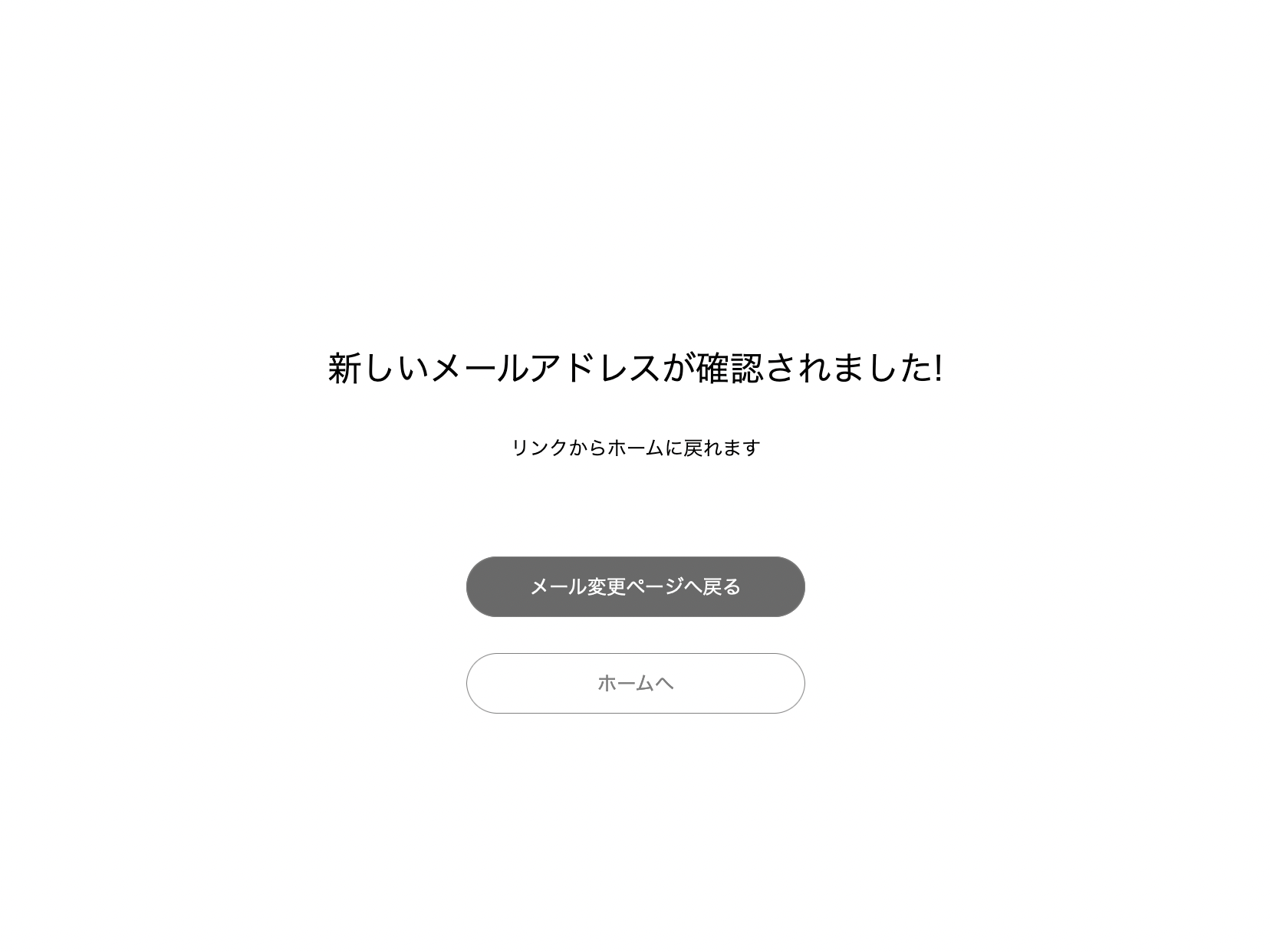
続いて、メールの認証が完了した後のページを作成する。
touch pages/users/confirmed_email.jsx
このページのコードはシンプルでメッセージを表示するだけである。
import Head from 'next/head'
import { Box, Text, Link } from '../../atomic/'

export default function ConfirmEmail() {
  return (
    <div>
      <Head>
        <title>メールの確認</title>
        <meta name="description" content="新しいメールアドレスの認証が完了しました" />
        <link rel="icon" href="/favicon.ico" />
      </Head>

      <Box as="main" display="flex" alignItems="center" height="100vh">
        <Box mx="auto">
          <Text fontSize={[24, null, 28]} textAlign="center">
            新しいメールアドレスが確認されました!
          </Text>
          <Text fontSize={[12, null, 16]} lineHeight="1.2" mt={[20, null, 40]} mx="auto" textAlign="center">
            リンクからホームに戻れます
          </Text>
          <Link href="/users/edit_email" width={[220, null, 280]} height={[44, null, 50]} borderRadius={[44 / 2, null, 50 / 2]} bg="dimgray" color="white" hoverShadow="silver" borderColor="gray" borderWidth={1} display="flex" alignItems="center" justifyContent="center" overflow="hidden" mt={80} mx="auto">
            メール変更ページへ戻る
          </Link>
          <Link href="/" width={[220, null, 280]} height={[44, null, 50]} borderRadius={[44 / 2, null, 50 / 2]} color="gray" hoverShadow="silver" borderColor="gray" borderWidth={1} display="flex" alignItems="center" justifyContent="center" overflow="hidden" mt={30} mx="auto">
            ホームへ
          </Link>
        </Box>
      </Box>
    </div>
  )
}
git add .
git commit -m "Updating user email"
パスワードの変更
パスワードの変更は基本的にユーザー情報更新と同じ挙動で変更することができる。 パスワード変更の専用ページを作成する。
touch pages/users/edit_password.jsx
そしたら以下を書き込む。
import { useState, useContext, useEffect } from 'react'
import Head from 'next/head'
import { useForm } from 'react-hook-form'
import { Text, Box, Clickable, TextField, ThreeDots, Alert, Image } from '../../atomic/'
import { AuthContext } from '../_app.js'
import { updateCurrentUser } from '../../lib/api/user'

export default function EditPassword() {
  const {
    register,
    handleSubmit,
    watch,
    setValue,
    formState: { errors },
  } = useForm()

  const [animation, setAnime] = useState(false)
  const { currentUser, isSignedIn, setCurrentUser } = useContext(AuthContext)
  const [notifications, setNotifications] = useState([])
  const createNotification = (message) => setNotifications([...notifications, { id: Math.random(), message }])
  const deleteNotification = (id) => setNotifications(notifications.filter((notification) => notification.id !== id))

  const onSubmit = async (data) => {
    if (!isSignedIn) {
      createNotification('変更にはログインが必要です')
      return
    }
    const params = new FormData()
    params.append('password', data.password)
    //params.append('password_confirmation', data.password)

    setAnime(true)
    try {
      const res = await updateCurrentUser(params)
      console.log(res)

      if (res.status === 200) {
        createNotification('パスワードを更新しました')
        setCurrentUser(res?.data.data)
        console.log('Signed in successfully!')
      } else {
        console.log('some thig went wrong')
        createNotification('予期しない問題が発生しました')
      }
    } catch (err) {
      console.log(err)
      createNotification('エラー')
    }
    setAnime(false)
  }

  return (
    <div>
      <Head>
        <title>パスワードのの変更</title>
        <meta name="description" content="パスワードの変更" />
        <link rel="icon" href="/favicon.ico" />
      </Head>
      <Box as="main" mt={[60, null, 80]}>
        <Text as="h1" textAlign="center" fontSize={[26, null, 36]} fontWeight={700} lineHeight={['26px', null, '36px']} letterSpacing={[1.3, null, 1.8]} color="#333">
          パスワードの変更
        </Text>
        <Box mt={[40, null, 60]} px={[16, null, 0]} width={['100%', 420]} mx="auto">
          <Text fontSize={14} lineHeight="1.71" letterSpacing={0.7} color="dimgray">
            新しいパスワード
          </Text>
          <TextField name="name" {...register('password', {})} height={46} width="100%" borderColor="gray" borderWidth={1} borderRadius={3} py={10} pl={14} fontColor="black" fontSize={16} letterSpacing={0.8} mt={8} />
          <Clickable width={[220, null, 280]} height={[44, null, 50]} borderRadius={[44 / 2, null, 50 / 2]} bg="dimgray" color="white" hoverShadow="silver" borderColor="gray" borderWidth={1} display="flex" alignItems="center" justifyContent="center" overflow="hidden" mt={80} mx="auto" onClick={handleSubmit(onSubmit)}>
            {animation ? <ThreeDots bg="white" /> : <>更新</>}
          </Clickable>
        </Box>
        <Box position="absolute" top="15px" right="20px">
          {notifications.map(({ id, message }) => (
            <Alert key={id} onDelete={deleteNotification} id={id}>
              <Box width={320} minHeight={50} borderRadius={7} border="1px solid silver" bg="ghostwhite" px={5.5} py={3} style={{ overflowWrap: 'break-word' }}>
                {message}
              </Box>
            </Alert>
          ))}
        </Box>
      </Box>
    </div>
  )
}
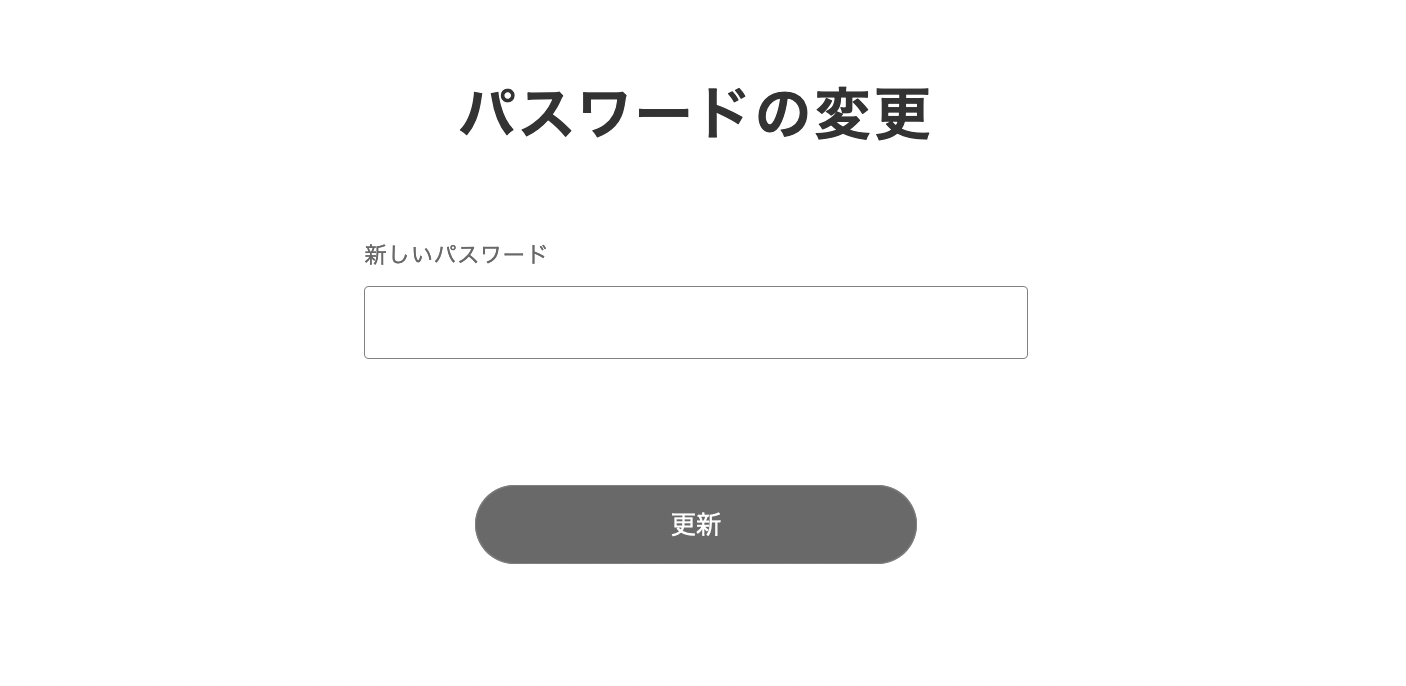
APIに投げる値はpasswordだけで大丈夫になっている。deviseのデフォルトの挙動ではpassword ,password_confirmation,current_passwordの三つを投げる仕様だが、
devise auth tokenがそれを上書きして、paswordだけで更新ができるようになっている。
下のリンクによれば/authのPUTアクションではpasswordと password_confirmationのパラメータが必要とあるがなぜかpasswordだけで通る。
https://devise-token-auth.gitbook.io/devise-token-auth/usage
認証を厳しくしてcurrent_passwordを必要とした場合はrailsのconfig/initializers/devise_token_auth.rbを変更すればできる。
password関連のattributesはdeviseがあらかじめ受け入れを許可しているので、app/controllers/applications_controller.rbを変更する必要はない。
パスワード変更後はパスワードのみが変更されるので、アクセストークンはそのまま利用できる。
git add .
git commit -m "Change the user password"
ログアウト
ログアウトの処理はデータベースに保存してあるアクセスキーを削除する処理をクライアントから投げるだけである。 具体的にはdevise auth tokenのsessions_controllerのdeleteのエンドポイントに削除したいトークンを投げるだけである。
https://devise-token-auth.gitbook.io/devise-token-auth/usage
destroy_user_session DELETE /auth/sign_out(.:format) devise_token_auth/sessions#destroy
投げた後は、ブラウザ側でCookieからトークンを削除すれば良い。
サーバー側の実装は特にないので、Next.jsプロジェクトで最初にセッションを削除する関数を作成する。
export const signOut = () => {
  if (!Cookies.get('_access_token') || !Cookies.get('_client') || !Cookies.get('_uid')) return
  return client.delete('auth/sign_out', {
    headers: {
      'access-token': Cookies.get('_access_token'),
      client: Cookies.get('_client'),
      uid: Cookies.get('_uid'),
    },
  })
}
サイアウトのボタンは大体の場合ヘッダーとかにあるのだけど、今は作っていないのでユーザー編集ページに配置しておく。
Cookieを操作するライブラリ、ログアウト後のリダイレクト用のuseRouter、signOut関数を読み込む。
すぐにリダイレクトするとよくわからないので、sleep関数も用意しておく
import { useRouter } from 'next/router'
import Cookies from 'js-cookie'
import { updateCurrentUser, signOut } from '../../lib/api/user'

const sleep = (msec) => new Promise((resolve) => setTimeout(resolve, msec))
ステート宣言あたりにuseRouterも宣言する。
const router = useRouter()
handleSignOut関数を記述。ログアウトが成功したら、Cookieからトークンを削除し、トップへリダイレクトする。
const handleSignOut = async () => {
  try {
    const res = await signOut()
    console.log(res)
    if (res.status === 200) {
      Cookies.remove('_access_token')
      Cookies.remove('_client')
      Cookies.remove('_uid')
      createNotification('ログアウトしました。')
      await sleep(2000)
      router.push('/')
    } else {
      console.log('some thig went wrong')
      createNotification('予期しない問題が発生しました')
    }
  } catch (err) {
    console.log(err)
    createNotification('エラー')
  }
}
jsxの更新ボタンの下にログアウトボタンを設置する。
<Clickable width={[220, null, 280]} height={[44, null, 50]} borderRadius={[44 / 2, null, 50 / 2]} color="dimgray" hoverShadow="silver" borderColor="gray" borderWidth={1} display="flex" alignItems="center" justifyContent="center" overflow="hidden" mt={80} mx="auto" onClick={() => handleSignOut()} >
  ログアウト
</Clickable>
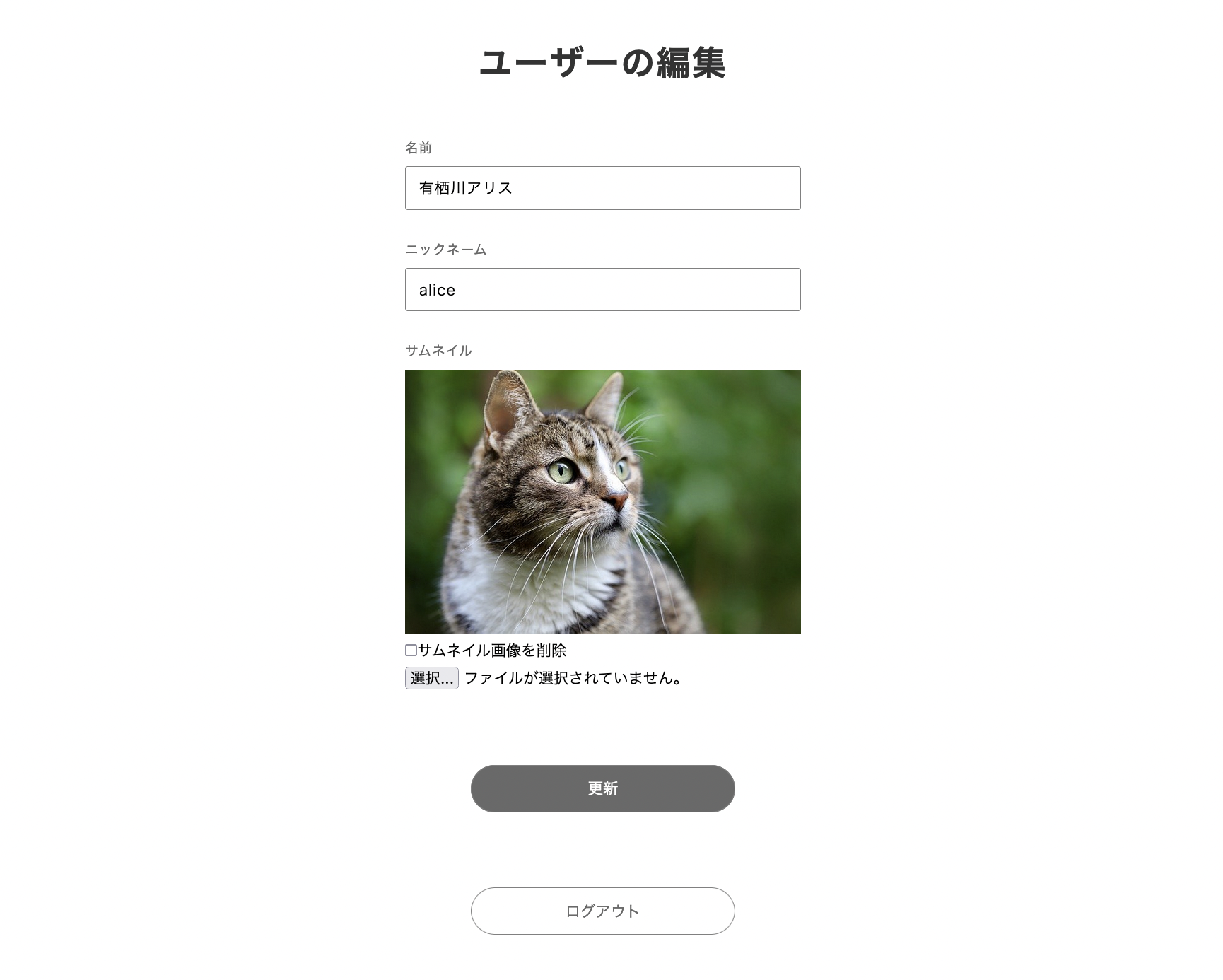
ログアウトの処理が完成。
git add .
git commit -m "Create a logout"
非ログインユーザーのパスワード変更
ログインしていないユーザーがパスワードを忘れてしまった場合の実装を行う。
まずはサーバー側でいくつか設定を行う。
最初に、パスワード再設定用のメールapp/views/users/mailer/reset_password_instructions.html.erbを編集する。
このメールテンプレートはdeviseの英語のままなので、日本語にすると共にredirect-urlを添付する。
<p>こんにちは <%= @resource.email %>!</p>

<p>パスワード再設定のリクエストを受けてメールを送信しています。よければ下のリンクから手続きを進められます。</p>

<p><%= link_to 'パスワード変更手続きへ', edit_password_url(@resource, reset_password_token: @token, redirect_url: message['redirect-url']) %></p>

<p>もしも、身に覚えがない場合はこのメールは無視してください。</p>
<p>パスワードはリンクをクリックして手続きをするまで変更されません。</p>
devise_auth_tokenは上のメールのリンクがクリックされた後、リダイレクトしてパスワード変更トークンを渡す。
同時に、ログイン情報もデフォルトでは渡してしまう。
つまり処理的にはそのままログインさせて、パスワード変更手続きを進めることも可能である。
ただ、そのような形態のサービスはあまり見ないので、できれば認証情報は投げないようにしたい。
認証情報を無視して進めても良いが、むやみにインターネットに認証情報が飛び交うのはよくないので、
config/initializers/devise_token_auth.rbを開いて、設定を加えることで、認証情報を投げないようにする。
config.require_client_password_reset_token = true
これでコミットする。
git add .
git commit -m "Update reset password email text and restrict return user auth info"
Next.jsに移動して、フロントを作成する。
最初に2つAPIを叩く関数を作る。
createPassword はメールアドレスを渡して、リセットパスワードトークンを含めたメールを送る。
updatePassword はリセットパスワードトークンと新しいパスワードを受け取って更新する。
export const createPassword = (params) => {
  return client.post('auth/password', null, {
    params,
  })
}

export const updatePassword = (params) => {
  return client.put('auth/password', null, {
    params,
  })
}
リセットパスワードメール送信ページを作成する。
touch pages/send_reset_password_email.jsx
import { useState } from 'react'
import Head from 'next/head'
import { useForm } from 'react-hook-form'
import { Text, Box, Clickable, TextField, ThreeDots, Alert } from '../atomic/'
import { createPassword } from '../lib/api/user'

export default function SendResetPasswordEmail() {
  const {
    register,
    handleSubmit,
    formState: { errors },
  } = useForm()

  const [animation, setAnime] = useState(false)
  const [notifications, setNotifications] = useState([])
  const createNotification = (message) => setNotifications([...notifications, { id: Math.random(), message }])
  const deleteNotification = (id) => setNotifications(notifications.filter((notification) => notification.id !== id))

  const onSubmit = async (data) => {
    const params = {
      email: data.email,
      redirectUrl: process.env.NEXT_PUBLIC_RESET_PASSWORD_URL || 'http://localhost:3000/reset_password',
    }

    setAnime(true)
    try {
      const res = await createPassword(params)
      console.log(res)

      if (res.status === 200) {
        createNotification('パスワード変更メールを送りました')
        console.log('Send reset password email successfully!')
      } else {
        console.log('some thig went wrong')
        createNotification('予期しない問題が発生しました')
      }
    } catch (err) {
      console.log(err)
      createNotification('エラー')
    }
    setAnime(false)
  }

  return (
    <div>
      <Head>
        <title>パスワード再設定メールの送信</title>
        <meta name="description" content="パスワード再設定メールの送信" />
        <link rel="icon" href="/favicon.ico" />
      </Head>
      <Box as="main" mt={[60, null, 80]}>
        <Text as="h1" textAlign="center" fontSize={[26, null, 36]} fontWeight={700} lineHeight={['26px', null, '36px']} letterSpacing={[1.3, null, 1.8]} color="#333">
          パスワード再設定メールの送信
        </Text>

        <Box mt={[40, null, 60]} px={[16, null, 0]} width={['100%', 420]} mx="auto">
          <Text fontSize={14} lineHeight="1.71" letterSpacing={0.7} color="dimgray">
            パスワード再設定送り先メールアドレス
          </Text>
          <TextField
            name="name"
            {...register('email', {
              required: true,
              pattern: {
                value: /^[A-Z0-9._%+-]+@[A-Z0-9.-]+\.[A-Z]{2,}$/i,
              },
            })} height={46} width="100%" borderColor="gray" borderWidth={1} borderRadius={3} py={10} pl={14} fontColor="black" fontSize={16} letterSpacing={0.8} mt={8}
          />
          {'email' in errors && (
            <Text fontSize={12} lineHeight="22px" letterSpacing={0.6} color="red" mt={8}>
              {errors.email?.type === 'required' && 'メールアドレスは必須です'}
              {errors.email?.type === 'pattern' && 'メールアドレスの形式が正しくありません'}
            </Text>
          )}

          <Clickable width={[220, null, 280]} height={[44, null, 50]} borderRadius={[44 / 2, null, 50 / 2]} bg="dimgray" color="white" hoverShadow="silver" borderColor="gray" borderWidth={1} display="flex" alignItems="center" justifyContent="center" overflow="hidden" mt={80} mx="auto" onClick={handleSubmit(onSubmit)}>
            {animation ? <ThreeDots bg="white" /> : <>送信</>}
          </Clickable>
        </Box>
        <Box position="absolute" top="15px" right="20px">
          {notifications.map(({ id, message }) => (
            <Alert key={id} onDelete={deleteNotification} id={id}>
              <Box width={320} minHeight={50} borderRadius={7} border="1px solid silver" bg="ghostwhite" px={5.5} py={3} style={{ overflowWrap: 'break-word' }}>
                {message}
              </Box>
            </Alert>
          ))}
        </Box>
      </Box>
    </div>
  )
}
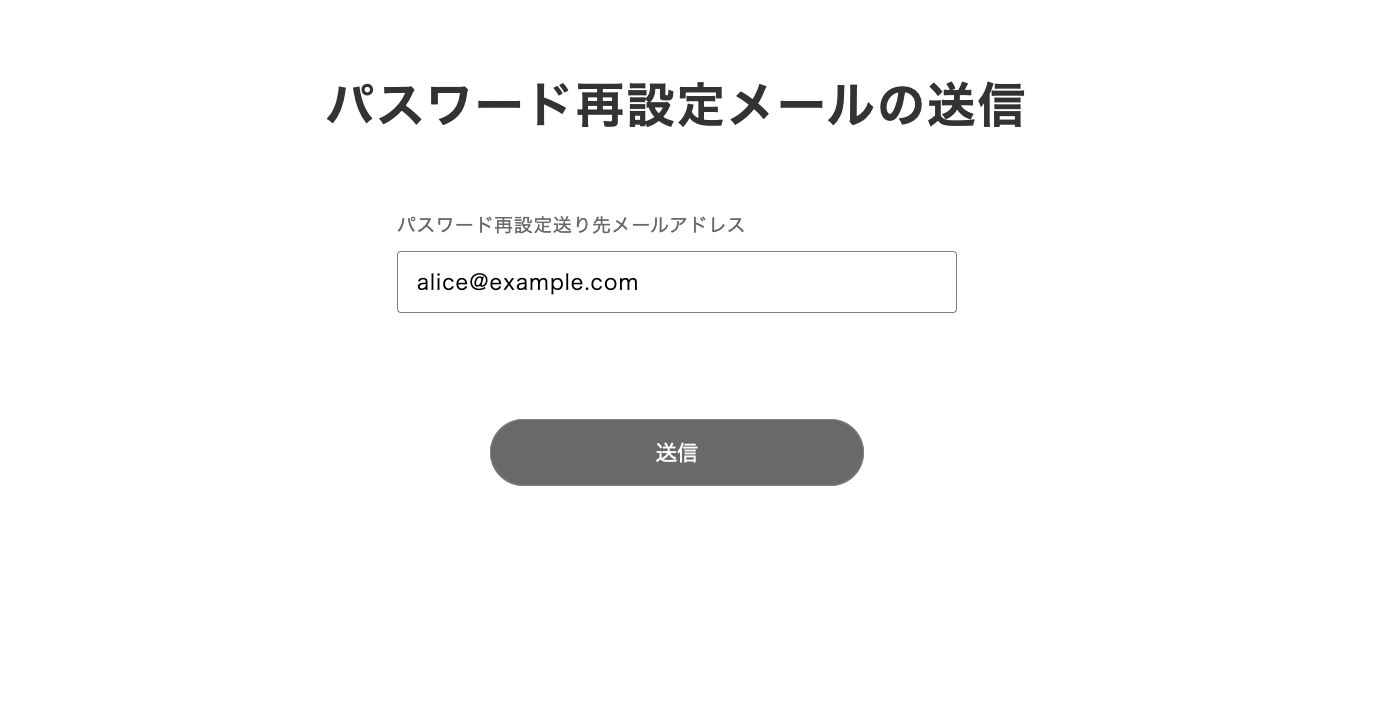
メールを送信すると、ボックスにこのようなメールが届く。
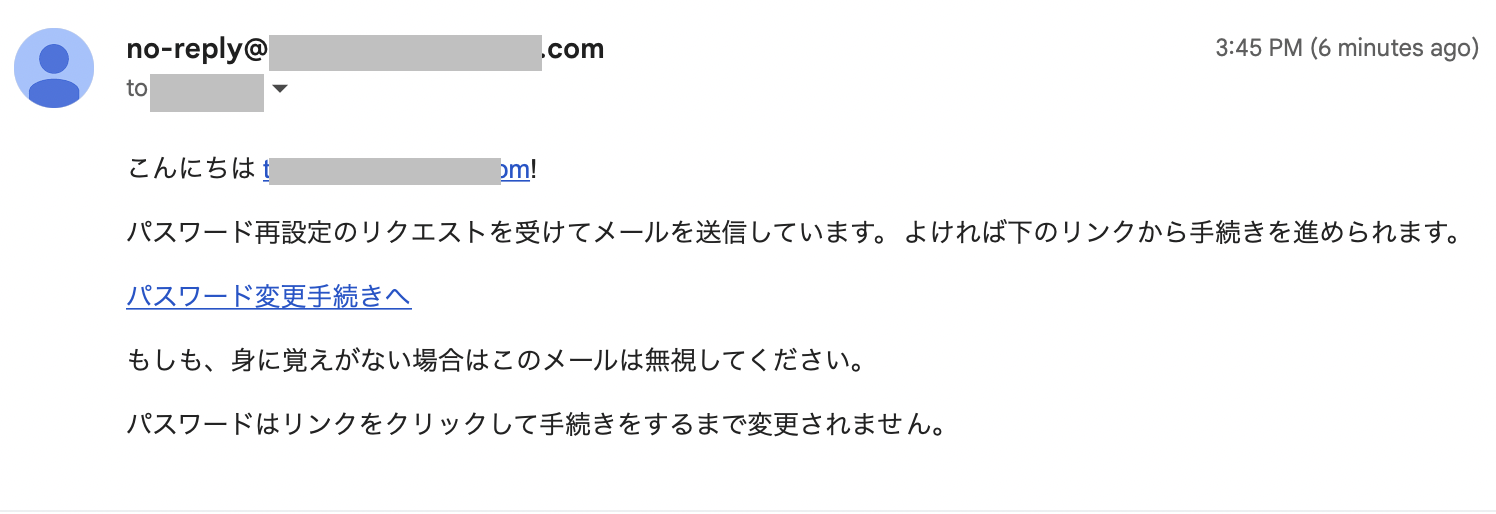
パスワード再設定のページを作成する。 ここが、上のメールのリンクをクリックした後のリダイレクト先になる。
touch pages/reset_password.jsx
import { useState } from 'react'
import Head from 'next/head'
import { useRouter } from 'next/router'
import { useForm } from 'react-hook-form'
import { Text, Box, Clickable, TextField, ThreeDots, Alert, Link } from '../atomic/'
import { updatePassword } from '../lib/api/user'

export default function ResetPassword() {
  const {
    register,
    handleSubmit,
    watch,
    formState: { errors },
  } = useForm()
  const router = useRouter()
  const { reset_password_token } = router.query

  const [animation, setAnime] = useState(false)
  const [notifications, setNotifications] = useState([])
  const createNotification = (message) => setNotifications([...notifications, { id: Math.random(), message }])
  const deleteNotification = (id) => setNotifications(notifications.filter((notification) => notification.id !== id))

  const onSubmit = async (data) => {
    const params = {
      password: data.password,
      passwordConfirmation: data.passwordConfirmation,
      reset_password_token,
    }

    setAnime(true)
    try {
      const res = await updatePassword(params)
      console.log(res)

      if (res.status === 200) {
        createNotification('パスワードを変更しました')
        console.log('Send reset password email successfully!')
      } else {
        console.log('some thig went wrong')
        createNotification('予期しない問題が発生しました')
      }
    } catch (err) {
      console.log(err)
      createNotification('エラー')
    }
    setAnime(false)
  }

  return (
    <div>
      <Head>
        <title>パスワードの再設定</title>
        <meta name="description" content="パスワードの再設定" />
        <link rel="icon" href="/favicon.ico" />
      </Head>
      <Box as="main" mt={[60, null, 80]}>
        <Text as="h1" textAlign="center" fontSize={[26, null, 36]} fontWeight={700} lineHeight={['26px', null, '36px']} letterSpacing={[1.3, null, 1.8]} color="#333">
          パスワードの再設定
        </Text>

        <Box mt={[40, null, 60]} px={[16, null, 0]} width={['100%', 420]} mx="auto">
          <Text fontSize={14} lineHeight="1.71" letterSpacing={0.7} color="dimgray">
            新しいパスワード
          </Text>
          <TextField
            name="name"
            {...register('password', {
              required: true,
              minLength: 8,
            })} height={46} width="100%" borderColor="gray" borderWidth={1} borderRadius={3} py={10} pl={14} fontColor="black" fontSize={16} letterSpacing={0.8} mt={8}
          />
          {'password' in errors && (
            <Text fontSize={12} lineHeight="22px" letterSpacing={0.6} color="red" mt={8}>
              {errors.password?.type === 'required' && 'パスワードは必須です'}
              {errors.password?.type === 'minLength' && 'パスワードは8文字以上です'}
            </Text>
          )}

          <Text fontSize={14} lineHeight="1.71" letterSpacing={0.7} color="dimgray" mt={30}>
            パスワードの再確認
          </Text>
          <TextField
            name="name"
            {...register('passwordConfirmation', {
              required: true,
              minLength: 8,
              validate: (value) => value === watch('password'),
            })} height={46} width="100%" borderColor="gray" borderWidth={1} borderRadius={3} py={10} pl={14} fontColor="black" fontSize={16} letterSpacing={0.8} mt={8}
          />
          {'passwordConfirmation' in errors && (
            <Text fontSize={12} lineHeight="22px" letterSpacing={0.6} color="red" mt={8}>
              {errors.passwordConfirmation?.type === 'required' && '確認パスワードは必須です'}
              {errors.passwordConfirmation?.type === 'minLength' && '確認パスワードは8文字以上です'}
              {errors.passwordConfirmation?.type === 'validate' && 'パスワードと確認パスワードが違います'}
            </Text>
          )}

          <Clickable width={[220, null, 280]} height={[44, null, 50]} borderRadius={[44 / 2, null, 50 / 2]} bg="dimgray" color="white" hoverShadow="silver" borderColor="gray" borderWidth={1} display="flex" alignItems="center" justifyContent="center" overflow="hidden" mt={80} mx="auto" onClick={handleSubmit(onSubmit)}>
            {animation ? <ThreeDots bg="white" /> : <>送信</>}
          </Clickable>
          <Box display="flex" justifyContent="center" mt={40}>
            <Link display="inline-block" href="/sign_in" color="dimgray">
              <Text>ログインページへ</Text>
            </Link>
          </Box>
        </Box>
        <Box position="absolute" top="15px" right="20px">
          {notifications.map(({ id, message }) => (
            <Alert key={id} onDelete={deleteNotification} id={id} deleteTime={6000}>
              <Box width={320} minHeight={50} borderRadius={7} border="1px solid silver" bg="ghostwhite" px={5.5} py={3} style={{ overflowWrap: 'break-word' }}>
                {message}
              </Box>
            </Alert>
          ))}
        </Box>
      </Box>
    </div>
  )
}
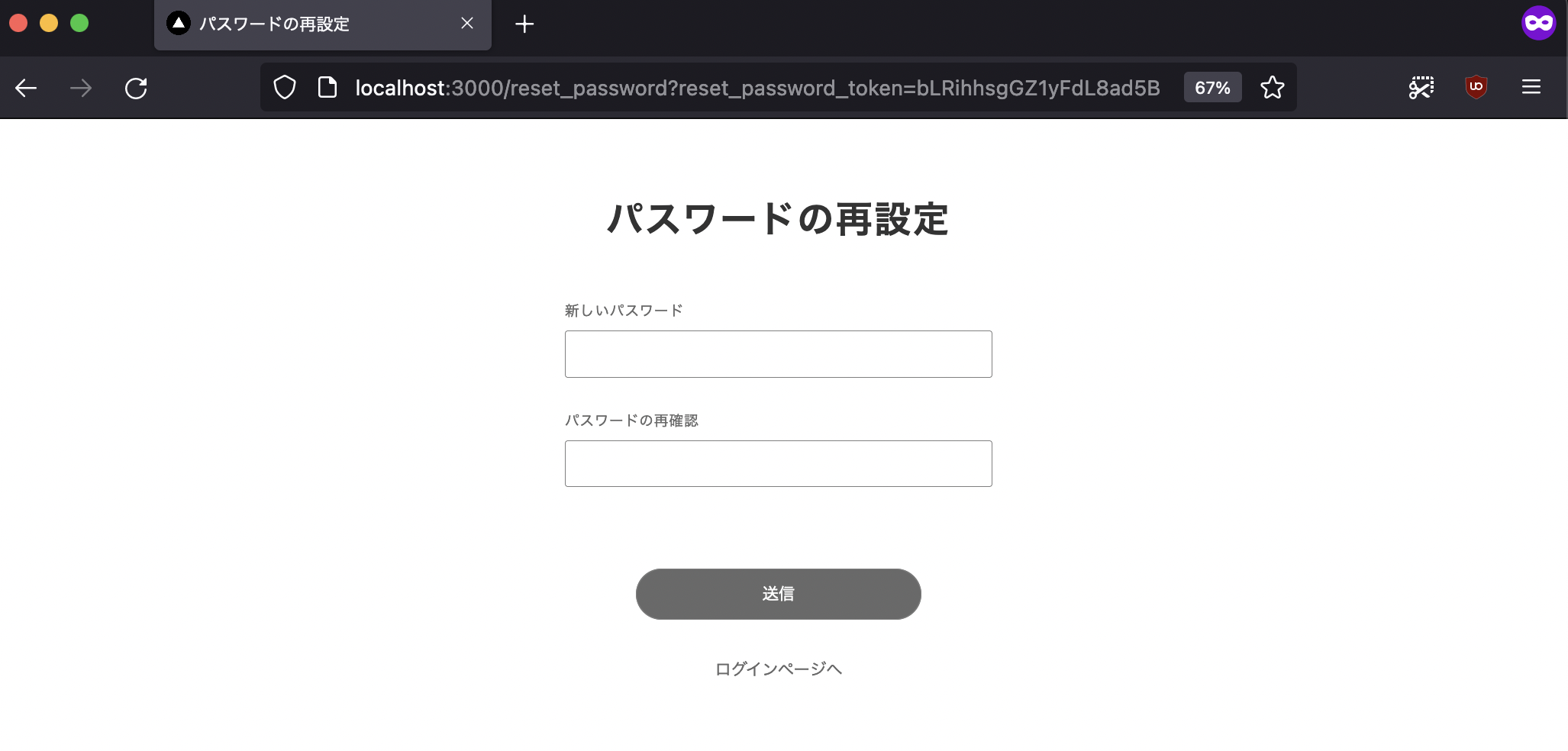
フォームに新しいパスワードを入力して送信すれば、パスワードが更新される。
git add .
git commit -m "Reset password form"